

Unfuddle STACK Help
Unfuddle STACK supports Two-Factor Authentication with software tokens. These are generated by an app referred to as the 'Authenticator', which is usually installed on your mobile phone or computer.
During the sign in process, after entering the correct username and password, a second step is introduced, where you are required to type in a token generated by the Authenticator.
STACK uses standard time-based one-time passwords (TOTP): a 6-digit code that changes every 30 seconds. Any standards-compliant authenticator app will work.
STACK's original 2FA used the Authy service, which Twilio has now retired. If you currently receive your STACK codes through Authy, you need to re-register your account with an authenticator app. It takes about a minute and you only do it once.
You can keep using the Authy app itself — just scan the new QR code with it, exactly as you would with any other authenticator.
From 28 September 2026 you will be asked to do this before you can continue using STACK. Your existing Authy codes keep working until you switch.
Follow the steps below. Because your account already has 2FA, the buttons read 'Reset and Reconfigure' rather than 'Setup Two-Factor Authentication' / 'Generate QR Code'.
Setting up the 2FA system for your account is an easy 3-step process:
- Make sure you have an Authenticator App installed.
Here are some Authenticators that are compatible with our 2FA system:
-
Generate and scan a QR code.
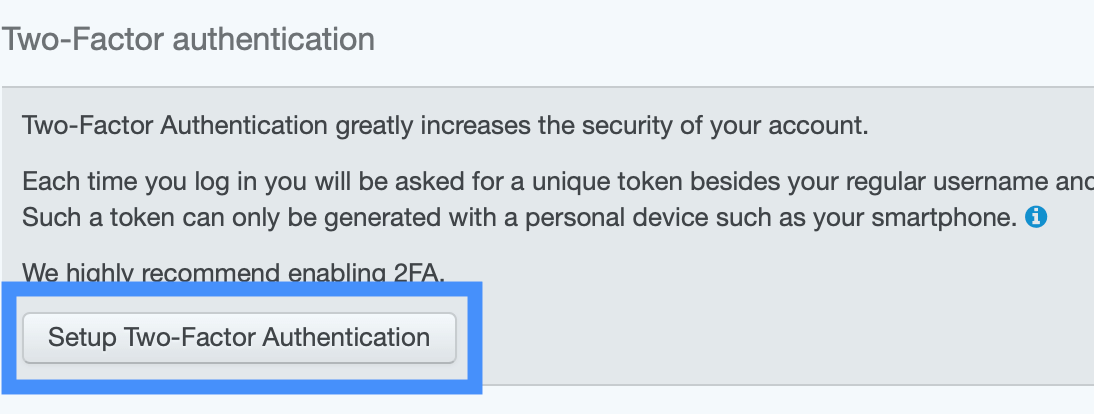
Sign In to Unfuddle STACK and go to your Personal Settings page, under Two-Factor Authentication. Click 'Setup Two-Factor Authentication' to start the setup process, and then click 'Generate QR Code' to generate the QR code.
If your account already has 2FA enabled — including if you are moving off Authy — both buttons read 'Reset and Reconfigure' instead.
Open the Authenticator app and scan the code.
If scanning is not an option, you can also copy the secret key manually by clicking 'Show the Secret Key'.
-
Type in the token/code generated by the app to finalize the integration.
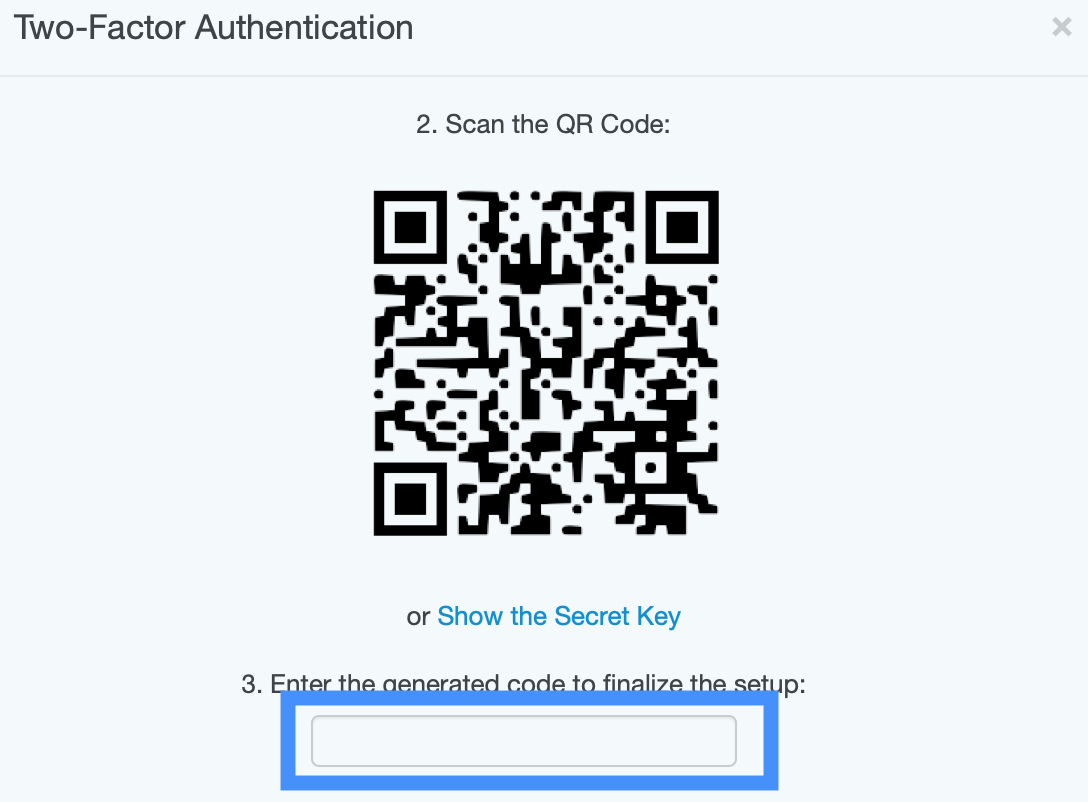
Click 'Verify Code' to finish the process. From now on every time you sign in, a token generated by the Authenticator will be required along with your username and password.
If the code is rejected, check that the clock on the device running your authenticator app is set automatically — TOTP codes depend on accurate time.
Two-Factor Authentication is configured separately for each Unfuddle account you belong to. If you sign in to more than one account, repeat the setup in each one. Your authenticator app will hold a separate entry per account, each labelled with that account's address.
STACK does not currently issue backup or recovery codes, so keep this in mind before you change or wipe a device:
Some authenticator apps (including Authy, 1Password and Bitwarden) can back up or sync your tokens across devices. Turning that on is the simplest way to avoid being locked out.
Go to Personal Settings, under Two-Factor Authentication, and click 'Disable 2FA'. Administrators can also disable 2FA for another person from that person's page.
If you haven't done so already, we strongly recommend enabling 2FA to increase the security of your account.
Read more about Multi Factor Authentication on Wikipedia.